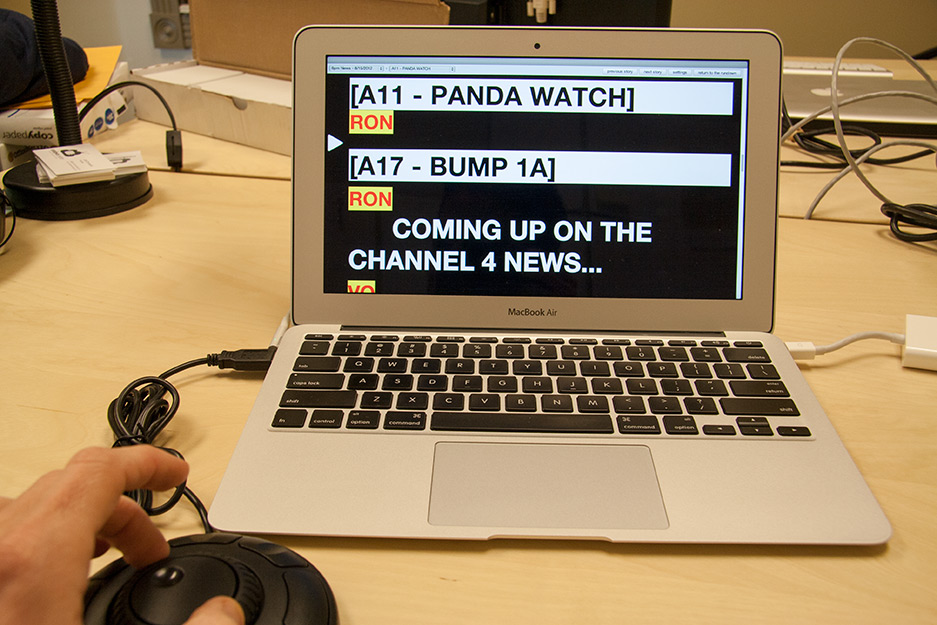
Rundown Creator's built-in, web-based teleprompter turns almost any desktop, laptop, tablet, or mobile-device into a teleprompter. It pulls its content directly from your rundowns and scripts, and updates in real-time as changes are made. It's pretty cool!
How it works
1. On the rundown page, click on the title/date of your rundown to bring up the rundown menu (shown below).
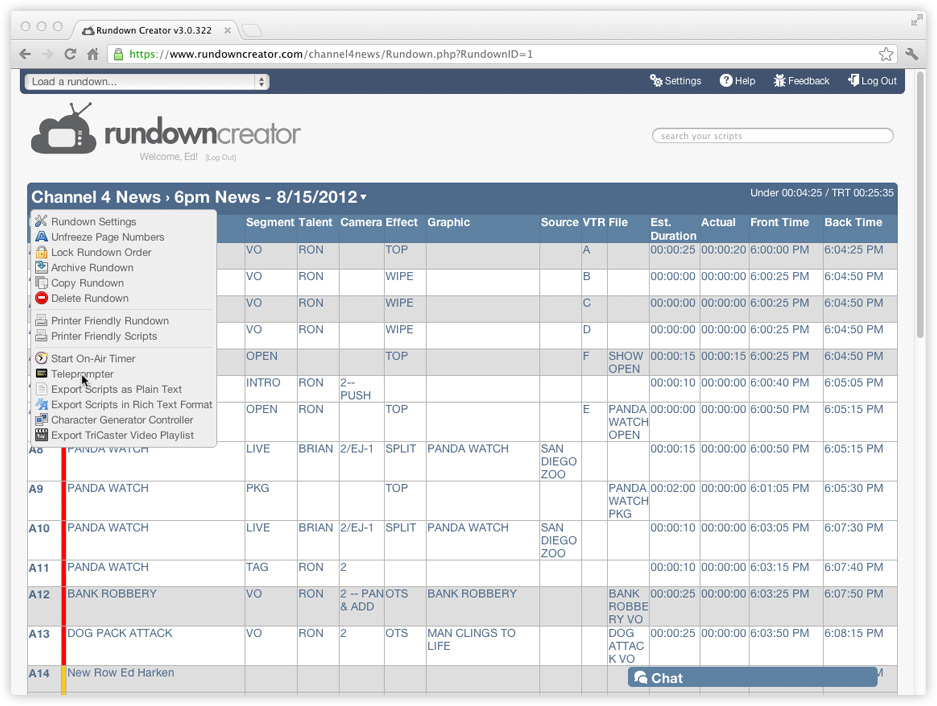
2. Click on the "Teleprompter" link.
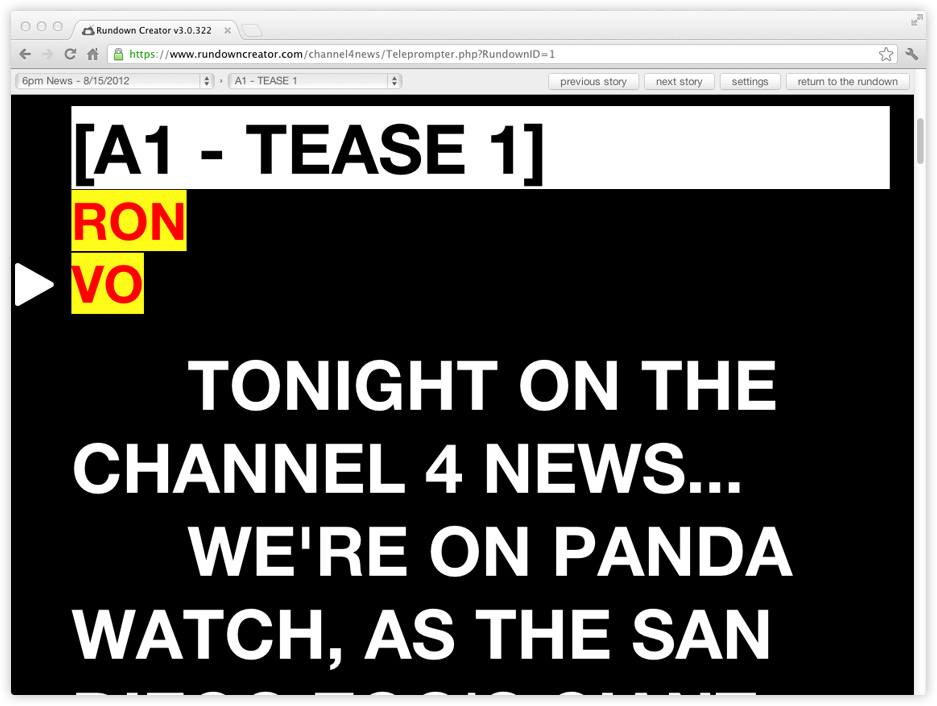
3. When using a desktop or laptop computer, you can use one of the
supported teleprompter controllers, the scroll wheel on your mouse, your trackpad, or the up/down arrow keys on your keyboard to change the speed/direction of the text.
When using a tablet or mobile-device, you can simply scroll using your finger, like you would with any other web page.
Adjusting the text size and color
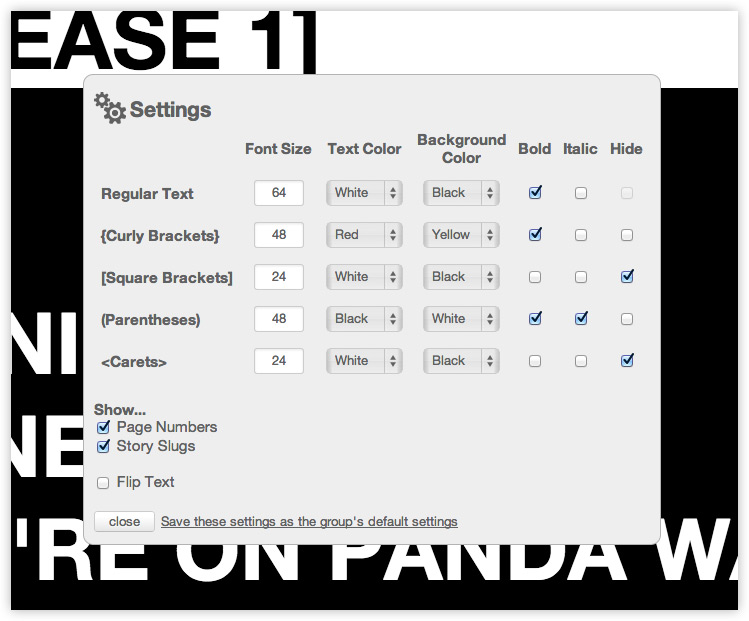
Click on the "settings" button in the upper right-hand corner of the screen to adjust the font size, color, and more.
Keyboard shortcuts
| Right arrow |
Go to the next script |
| Left arrow |
Go to the previous script |
| Home |
Go to the first script |
| End |
Go to the last script |
| Up arrow |
Turn speed/direction up |
| Down arrow |
Turn speed/direction down |
| Spacebar / 0 |
Stop |
| 1-9 |
Speed presets (forwards) |
| Shift + 1-9 |
Speed presets (backwards) |
| Esc |
Return to the rundown |
Teleprompter controllers
In addition to using your mouse, trackpad, and keyboard, you can also use several jog/shuttle and multimedia controllers to control the Rundown Creator teleprompter. Here are the ones we've tested and given the Rundown Creator seal of approval:
Contour Design ShuttleXpress
Approximately $40
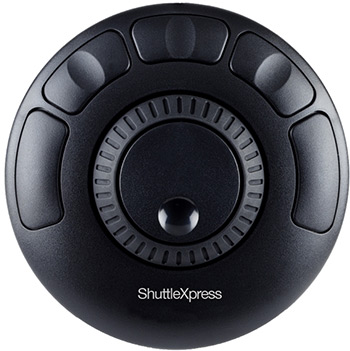
The
Contour Design ShuttleXpress is hands down our favorite! It works so well with the Rundown Creator teleprompter and setting it up is super simple. All you have to do is install the software that comes with the ShuttleXpress, download
this file, and import the settings file for the web browser you're using (or just import them all, if you want).
The shuttle wheel (the outer part of the circle) behaves as you'd expect. Turn it right and the text scrolls forwards. Turn it left and the text scrolls backwards. The speed varies depending on how far you turn the wheel.
What's really cool is that if you release the shuttle wheel, it snaps back to the 12 o'clock position and the text stops scrolling like it would with professional teleprompter controllers.
The ShuttleXpress has five buttons that we've mapped as follows:
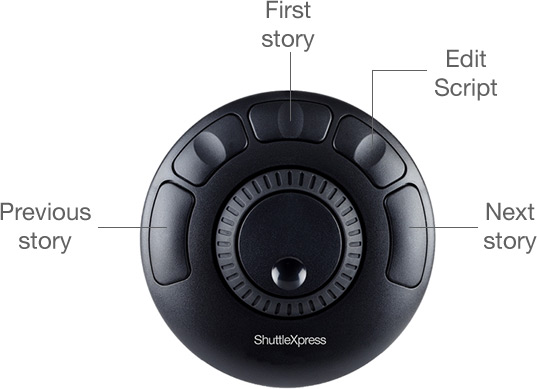
If you have trouble importing the settings file above, you'll need to manually program the key mappings as follows:
| Button 1 |
Type keystroke left arrow key |
| Button 3 |
Type keystroke home |
| Button 4 |
Type keystroke shift + ctrl + e |
| Button 5 |
Type keystroke right arrow key |
| Jog Left |
Type keystroke down arrow key |
| Jog Right |
Type keystroke up arrow key |
| Shuttle in Left 7 |
Type keystroke shift + 9 |
| Shuttle in Left 6 |
Type keystroke shift + 7 |
| Shuttle in Left 5 |
Type keystroke shift + 5 |
| Shuttle in Left 4 |
Type keystroke shift + 4 |
| Shuttle in Left 3 |
Type keystroke shift + 3 |
| Shuttle in Left 2 |
Type keystroke shift + 2 |
| Shuttle in Left 1 |
Type keystroke shift + 1 |
| Shuttle Centered |
Type keystroke 0 |
| Shuttle in Right 1 |
Type keystroke 1 |
| Shuttle in Right 2 |
Type keystroke 2 |
| Shuttle in Right 3 |
Type keystroke 3 |
| Shuttle in Right 4 |
Type keystroke 4 |
| Shuttle in Right 5 |
Type keystroke 5 |
| Shuttle in Right 6 |
Type keystroke 7 |
| Shuttle in Right 7 |
Type keystroke 9 |
The software that ships with the ShuttleXpress includes settings presets for various applications. You'll want to delete any that might conflict with the Rundown Creator teleprompter. For example, if you're using the Rundown Creator teleprompter with Safari and there's already a settings preset for "Apple Safari" or "Safari", you'll want to delete those so they don't conflict.
In addition to the ShuttleXpress, Contour Design also makes a few other controllers too. While we haven't tested them, they should work if you program them manually using the key mappings above.
Approximately $30
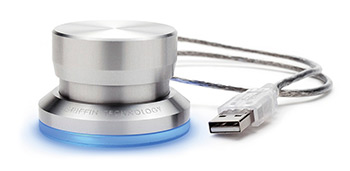
The
Griffin Technology Powermate USB Multimedia Controller doesn't work as well with the Rundown Creator teleprompter as the Contour Design ShuttleXpress. The wheel doesn't snap back to the center, and there aren't any buttons you can use to navigate between stories. But, it gets the job done.
Unfortunately, the Griffin Technology Powermate USB Multimedia Controller doesn't support importing or exporting settings, so you'll have to manually set up the controller for the web browser you want to use it with like so:
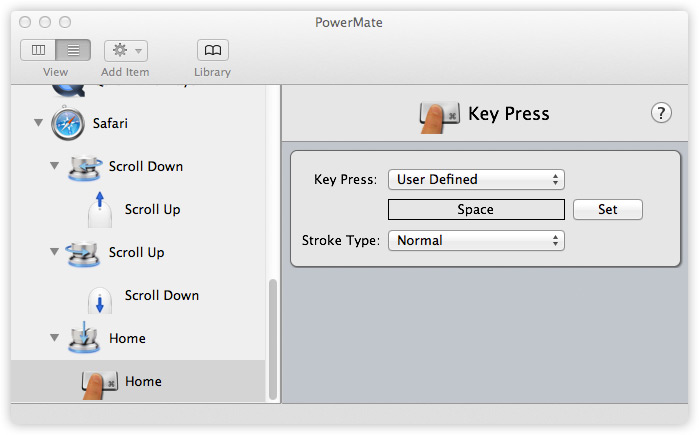
Web browsers
The Rundown Creator teleprompter works best in Chrome and Safari, so try using one of those web browsers, if possible. If you're using Chrome and the scrolling is jerky,
disabling hardware acceleration may help.
Screen resolution
For the best performance and the smoothest scrolling text, try reducing your computer screen's resolution to something like 800x600 or 1024x768. It makes a big difference!
Making the teleprompter fullscreen
Depending on what operating system and web browser you're using, you might be able to make the teleprompter fullscreen. Chrome, for example, has a "presentation mode," which you can activate from the View menu. Safari on Macs with Lion (10.7) or higher, has a similar full screen mode, which can also be activated from the View menu.
Since things vary so much from browser-to-browser and operating system to operating system, we recommend you simply look in the View menu on your web browser. It might have a full screen mode feature. If it doesn't, you might be able to hide unnecessary toolbars instead.
"Flipping" or "mirroring" text
If your teleprompter hardware doesn't support flipping or mirroring text itself, you will most likely need to send it a video signal with the text already flipped. You can accomplish this one of two ways:
1. The right way would be to purchase a video processor like the
Decimator MD-HX or
Hall Research SC-VHD-HD to flip the text. These cost a few hundred dollars.
2. If your budget won't allow for that, you can flip the text in Rundown Creator, place a mirror to the left or right of the teleprompter operator's display, and have them look at the text through the mirror (where it will appear unflipped).
